


Troubleshooting Guide for LEX L11 Device
This is a troubleshooting guide for the LEX L11 Mission-Critical LTE device. It will provide vital steps to follow if you encounter any 4G outages.
LEX L11 Operations:
- On the LEX L11 homepage, open ME MDM application then select [Settings]
- Scroll to the bottom and select [Exit Kiosk] and enter password: Ap3xR4dio
- Select [OK]
- Do not enter Kiosk
- Return to the Home Screen
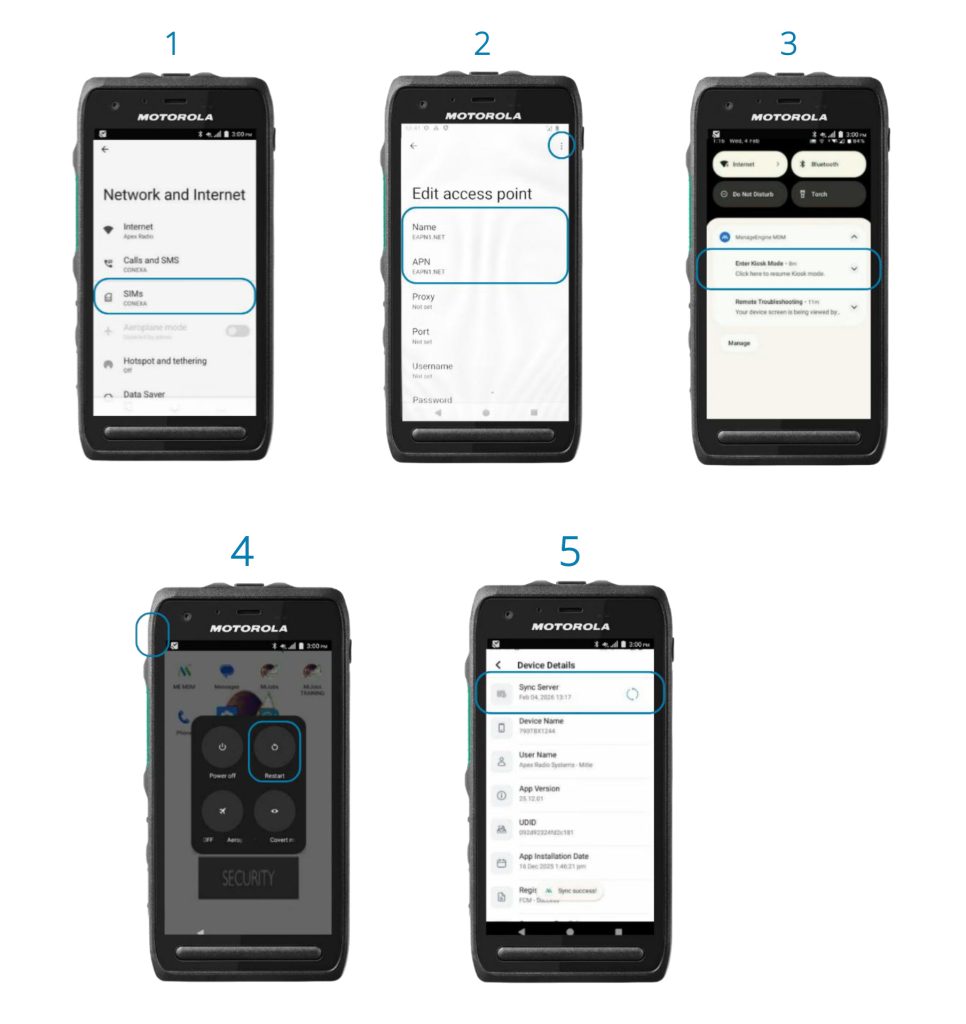
- Swipe up and select [Settings] > [Network and Internet] > [SIMs > CONEXA] ₁
- Scroll and select [Access points names]
- Select [+] on the top right hand side of the screen and enter the following: Name: EAPN1.net, APN: EAPN1.net
- Select ₂ [⋮] and [Save]
- The 4G symbol will now be displayed in the top right-hand corner, showing connectivity.
Then, please:
- Swipe down on the screen to display [Notifications]
- Select and open [Enter Kiosk Mode] ₃ notification.
Press and hold the [On] Button on the side of the LEX L11 Device and select [Restart] ₄
Once the LEX L11 has restarted:
- Wait for 4G to show – please note, this can take up to 5 minutes and press [Enter Kiosk Mode]
- If not prompted to Enter Kiosk Mode, go to ME MDM, Settings – enter Kiosk
- Select [Wave PTX] and press the PTT to create a test call
- Then to test further connectivity, return to home screen and open apps to ensure working functionality
- Select [ME MDM] > [Device Details]
- [Sync Server] ₅ will show as updated with date and time performed.
Please note: If you need to contact us for any additional support during working hours, please use 0191 300 6108 and someone in the team will be there to help. If you need assistance outside of working hours, please email dwp@apexradio.com, and someone will get back to you during our working hours.